
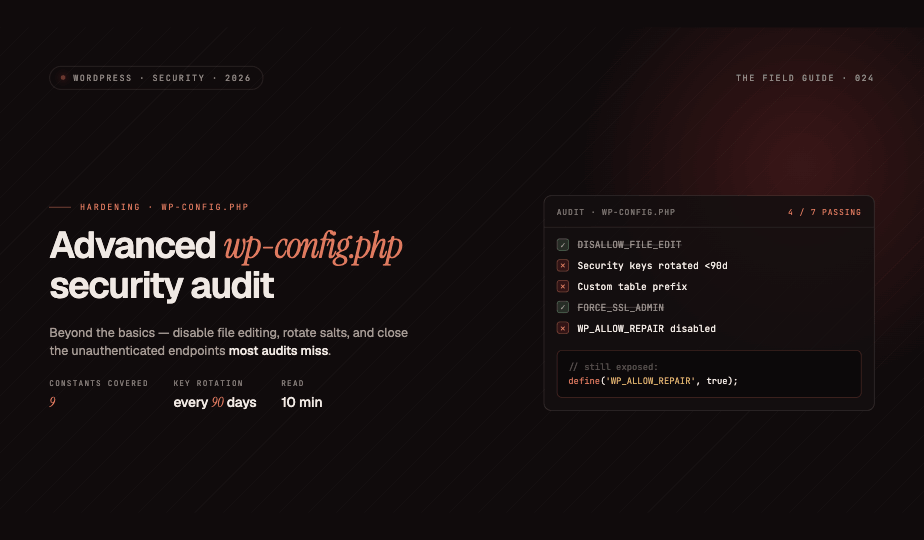

Introduction to wp-config.php Security
The wp-config.php file is WordPress's most critical configuration file, containing database credentials and site-wide settings. While most developers are familiar with basic database connection details, numerous security-focused constants remain underutilized. This comprehensive audit explores advanced hardening techniques that significantly reduce your attack surface during initial deployment or security reviews.
Disable File Editing from the Dashboard
One of the most powerful yet overlooked security measures involves disabling the built-in theme and plugin editors. If an attacker compromises an administrator account, they can inject malicious code directly through the WordPress dashboard.
define('DISALLOW_FILE_EDIT', true);This constant removes the Appearance > Theme Editor and Plugins > Plugin Editor menu items entirely. It prevents code injection attacks that leverage compromised admin credentials and should be standard practice on production environments. For legitimate file modifications, use SFTP or SSH access instead.
Prevent File Modifications Completely
Taking security a step further, you can disable all file modifications including plugin and theme installations:
define('DISALLOW_FILE_MODS', true);This constant prevents WordPress from writing any files to the filesystem, blocking theme installations, plugin updates, and core updates through the dashboard. While more restrictive than DISALLOW_FILE_EDIT, it ensures that even if an attacker gains admin access, they cannot modify your WordPress installation. Manage updates through version control and deployment pipelines instead.
Security Keys and Salts Rotation
WordPress uses eight security keys and salts to encrypt information stored in user cookies. Default installations often use placeholder values or keys that were never rotated after initial setup.
define('AUTH_KEY', 'put your unique phrase here');
define('SECURE_AUTH_KEY', 'put your unique phrase here');
define('LOGGED_IN_KEY', 'put your unique phrase here');
define('NONCE_KEY', 'put your unique phrase here');
define('AUTH_SALT', 'put your unique phrase here');
define('SECURE_AUTH_SALT', 'put your unique phrase here');
define('LOGGED_IN_SALT', 'put your unique phrase here');
define('NONCE_SALT', 'put your unique phrase here');
Generate fresh keys using the WordPress.org secret key service. These should be rotated every 90-180 days as part of your security maintenance routine. When you update these values, all users will be logged out and must authenticate again, effectively invalidating potentially compromised sessions.
Custom Database Table Prefixes
The default wp_ table prefix is well-known to attackers. Automated SQL injection attacks often target default table names. Change this during installation or migration:
$table_prefix = 'wpx7k_';Use a random alphanumeric string followed by an underscore. While not a complete defense against SQL injection, it adds an obscurity layer that defeats automated attacks. This is most effective when implemented during initial setup, as changing prefixes on existing installations requires database migration.
Secure Debug Log Configuration
Debug logging is essential for troubleshooting but creates security vulnerabilities if improperly configured. The debug.log file can expose sensitive information about your installation, plugins, database structure, and file paths.
define('WP_DEBUG', false);
define('WP_DEBUG_LOG', true);
define('WP_DEBUG_DISPLAY', false);
@ini_set('display_errors', 0);
This configuration enables logging to wp-content/debug.log while preventing error messages from appearing on your live site. For production environments, set WP_DEBUG to false entirely. If debugging is necessary, ensure the log file is protected from web access via .htaccess rules:
<Files debug.log>
Order allow,deny
Deny from all
</Files>
Force SSL for Admin and Logins
Protect authentication credentials and admin sessions by forcing SSL connections:
define('FORCE_SSL_ADMIN', true);This constant forces all admin dashboard traffic and login attempts over HTTPS, preventing credential interception through man-in-the-middle attacks. Requires a valid SSL certificate on your server. Modern WordPress installations should use HTTPS site-wide, but this adds an additional enforcement layer.
Limit Post Revisions
While not strictly a security measure, limiting post revisions reduces database bloat and potential information disclosure:
define('WP_POST_REVISIONS', 5);Excessive revisions can expose content history that should remain private. Setting a reasonable limit also improves database performance during queries and backups.
Automatic Database Optimization
Enable automatic database repair mode when needed:
define('WP_ALLOW_REPAIR', true);This constant enables the database repair script at /wp-admin/maint/repair.php, which requires no authentication. Only enable this temporarily when repairing databases, then immediately remove or comment out this line. Leaving it active creates an unauthenticated endpoint that attackers can abuse to cause denial of service.
Implementation Checklist
When auditing your wp-config.php file, verify these items:
- File permissions set to 440 or 400 (readable only by owner)
- DISALLOW_FILE_EDIT enabled on production environments
- Security keys rotated within the last 90 days
- Custom database table prefix in use
- Debug mode disabled and display_errors off
- FORCE_SSL_ADMIN enabled with valid SSL certificate
- WP_ALLOW_REPAIR disabled unless actively troubleshooting
Combine these wp-config.php hardening techniques with server-level security measures, regular updates, and strong authentication practices for comprehensive WordPress security. These configurations establish a solid foundation that makes your installation substantially more resistant to common attack vectors.