

Why Automate WordPress Site Cloning
Manually duplicating WordPress sites wastes valuable development time. Whether you're creating staging environments, client demo sites, or test instances for plugin development, the traditional copy-paste-export-import workflow is error-prone and tedious. Modern DevOps practices demand faster, repeatable processes. By mastering programmatic cloning with WP-CLI and shell scripts, you transform hours of manual work into minutes of automated execution.
Prerequisites and Environment Setup
Before diving into cloning operations, ensure your server environment meets these requirements. First, install WP-CLI on your server or development machine. Most managed WordPress hosts include it by default, but for VPS deployments, install via the official installation script. Verify installation by running wp --info in your terminal.
You'll also need SSH access with appropriate file permissions, MySQL credentials for database operations, and sufficient disk space for the cloned site. For production-grade automation, consider setting up dedicated deployment keys and database users with limited privileges to minimize security risks.
Cloning WordPress Files
The file cloning process involves copying the entire WordPress directory structure while preserving permissions and ownership. The most efficient approach uses rsync for its speed and incremental transfer capabilities. Navigate to your source WordPress root directory and execute:
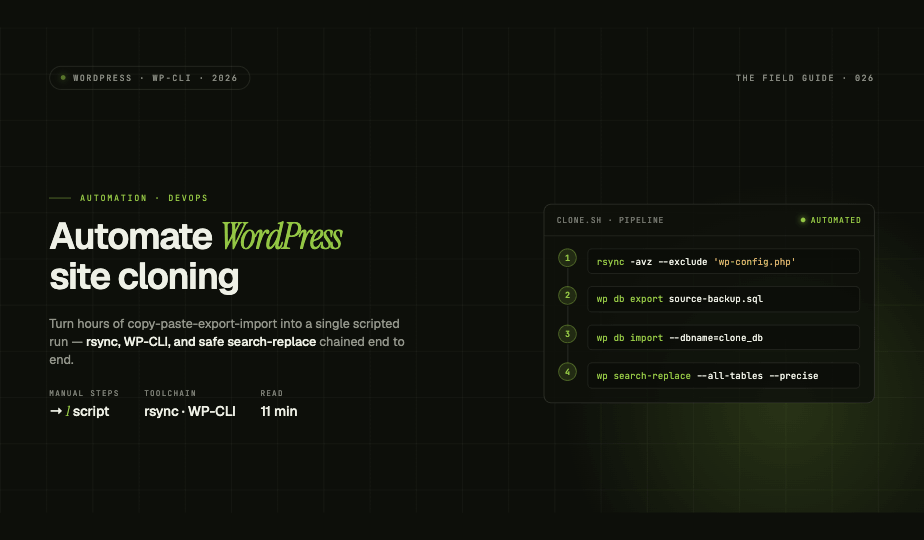
rsync -avz --exclude 'wp-config.php' /var/www/source-site/ /var/www/clone-site/
This command copies all files recursively while excluding the configuration file, which you'll customize later. The -a flag preserves permissions and timestamps, -v provides verbose output for monitoring, and -z enables compression during transfer. For remote cloning between servers, modify the syntax to include SSH connection details.
Alternatively, use tar for creating portable archives. This proves valuable when transferring sites across different hosting providers or creating backup snapshots before major updates.
Database Duplication with WP-CLI
Database cloning requires careful handling to maintain data integrity while updating site-specific references. Start by exporting the source database using WP-CLI's built-in export functionality. Navigate to the source site directory and run:
wp db export source-backup.sql
This creates a complete SQL dump of your WordPress database. Next, create a new database for your cloned site through your MySQL command line or hosting control panel. Import the database dump into the new database:
wp db import source-backup.sql --dbname=clone_database
The real power emerges when you chain these operations with search-replace commands to update domain references, eliminating broken links and ensuring the cloned site functions independently.
Mastering Search-Replace Operations
WordPress stores URLs throughout the database in various formats, including serialized PHP arrays. Simple find-and-replace operations break serialization, corrupting data. WP-CLI's search-replace command handles this complexity automatically, maintaining data integrity while updating references.
Execute a comprehensive search-replace to update all domain references:
wp search-replace 'https://source-site.com' 'https://clone-site.com' --all-tables --precise
The --all-tables flag ensures coverage beyond core WordPress tables, catching plugin and theme data. The --precise flag prevents partial string matches that could corrupt unrelated data. Always perform a dry run first using the --dry-run flag to preview changes before committing them.
For multisite installations or complex database schemas, you may need multiple search-replace passes targeting different patterns. Common targets include file paths, CDN URLs, and environment-specific configuration strings stored in options tables.
Configuration File Management
Each cloned WordPress instance requires a unique wp-config.php file with environment-specific settings. Rather than manually editing configuration files, automate this process using template files and variable substitution. Create a wp-config template with placeholder variables:
define('DB_NAME', '{{DB_NAME}}');
define('DB_USER', '{{DB_USER}}');
define('DB_PASSWORD', '{{DB_PASSWORD}}');
Your automation script can then use sed or envsubst to replace placeholders with actual values. This approach supports multiple environments with different credentials while maintaining security best practices by keeping sensitive data outside version control.
Don't forget to regenerate authentication salts for each clone using WP-CLI's built-in salt generation or the WordPress.org secret key service. This ensures session security remains unique across instances.
Building a Complete Automation Script
Combine individual operations into a comprehensive bash script that handles the entire cloning workflow. A production-ready script should include error handling, logging, and rollback capabilities. Here's a conceptual framework:
Start with variable declarations for source and destination paths, database credentials, and domain names. Implement validation checks to verify source site accessibility and destination directory availability. Execute file copying with progress indicators, create and import the database with error trapping, and perform search-replace operations with dry-run confirmation prompts.
Add filesystem permission corrections to ensure web server processes can read and write appropriately. Include cache clearing operations to prevent stale data from causing issues. Finally, implement verification steps that check database connectivity, file integrity, and front-end accessibility before considering the clone complete.
Advanced Considerations and Best Practices
For enterprise environments, integrate cloning scripts with CI/CD pipelines and container orchestration platforms. Docker containers provide isolated, reproducible WordPress environments ideal for automated testing and parallel development workflows. Version control your automation scripts and maintain documentation for team collaboration.
Consider implementing differential cloning for large sites where full copies consume excessive resources. Techniques like database table filtering allow you to clone only essential data, excluding transient caches and analytics tables that regenerate automatically.
Security remains paramount when automating site operations. Store credentials in environment variables or secure vaults rather than hardcoding them in scripts. Implement audit logging to track cloning operations, especially in shared hosting environments or when managing client sites.
Troubleshooting Common Issues
Even well-crafted automation encounters edge cases. Serialization errors after search-replace typically indicate missed table scans or improperly formatted replacement strings. File permission issues often stem from mismatched user ownership between manual operations and script execution. Database import failures usually trace to character encoding mismatches or insufficient MySQL privileges.
When cloning sites with custom upload directories or symbolic links, ensure your file copying method preserves these structures. Memory exhaustion during large database imports can be resolved by adjusting PHP memory limits or processing tables individually. Always test your automation script in development environments before deploying to production workflows.