

The Problem: Shared Hosting Doesn't Scale, Managed Hosting Locks You In
If you manage more than a handful of WordPress sites, you've hit this wall. Shared hosting costs balloon fast when you need decent performance. A single cPanel account with ten sites costs more per month than a VPS with better specs. Managed WordPress hosting like WP Engine or Kinsta works well but charges per site, and you're stuck with their infrastructure, their rules, and their pricing tiers.
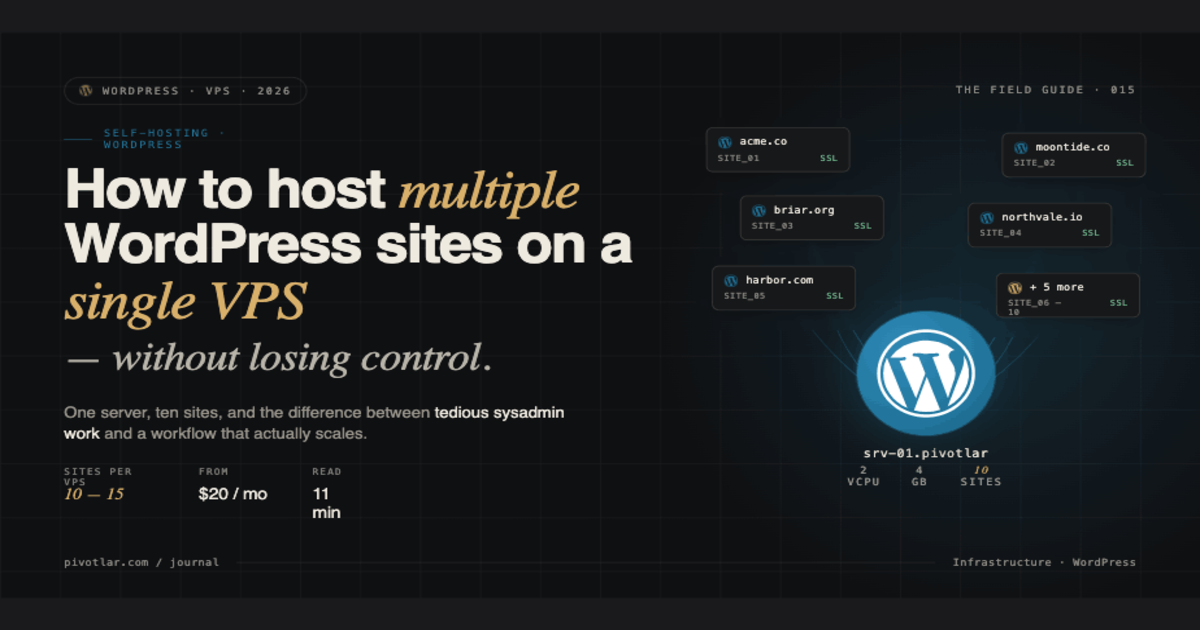
Self-hosting on a VPS gives you full control and better economics. A $20 VPS can comfortably run ten to fifteen WordPress sites if configured correctly. But doing it manually means dealing with Nginx configurations, MySQL user permissions, SSL certificate renewals, and the constant risk that one misconfigured site breaks everything else.
This post walks through what it actually takes to host multiple WordPress sites on a single VPS, where the manual approach falls short, and how to automate the tedious parts without surrendering control to a managed platform.
What Hosting Multiple WordPress Sites on One VPS Actually Means
When you host multiple WordPress sites VPS-style, you're running separate WordPress installations on one server. Each site needs its own domain or subdomain, its own database, and ideally its own system user for file permissions. Here's what that looks like under the hood.
Your web server (usually Nginx or Apache) uses virtual host configurations to route incoming requests to the correct WordPress directory based on the domain name. Nginx calls these server blocks. Each block defines the root directory, PHP handler, and SSL certificate for one site.
Each WordPress installation connects to its own MySQL database. You create a dedicated database user with permissions restricted to that database only. This prevents one compromised site from accessing another site's data.
For SSL, you need separate certificates for each domain. Tools like Certbot automate this with Let's Encrypt, but you still need to configure each certificate and set up renewal hooks.
File-level isolation matters too. Running each site under its own Linux user means that even if someone exploits a plugin vulnerability, they can't write to other sites' directories. This requires proper ownership and permission settings across your entire web root.
The Manual Way: What It Actually Takes
Setting up your first site manually teaches you how everything fits together. You provision a VPS from DigitalOcean, Vultr, Hetzner, or Amazon Lightsail. You SSH in, install Nginx, PHP-FPM, and MySQL. You create a database, download WordPress, configure Nginx with a server block, and point your domain's DNS to the server IP.
Then you install Certbot, run it to generate an SSL certificate, and Nginx automatically serves your site over HTTPS. It works, and you feel competent.
Adding a second site means repeating most of those steps. You create another database and user in MySQL. You write another Nginx server block, making sure the root path and server_name directives are correct. You run Certbot again for the new domain. You set up a new system user if you want proper isolation, then chown the WordPress files to that user and configure PHP-FPM to run as that user.
By the third or fourth site, you're copying and pasting Nginx configs and hoping you didn't typo a directory path. You're managing a growing list of databases, system users, PHP-FPM pools, and SSL certificates that all need renewal tracking.
Firewall rules need attention too. You configure UFW or iptables to allow ports 80, 443, and your SSH port while blocking everything else. Updates become a scheduling problem because you need to coordinate Nginx, PHP, MySQL, and WordPress core and plugin updates across all sites without taking everything offline.
It works. People run production infrastructure this way. But it's tedious and error-prone once you're managing more than five sites.
What Breaks at Scale
The manual multiple WordPress VPS setup starts showing cracks around site six or seven, depending on your tolerance for maintenance overhead.
Permissions drift. You set up proper user isolation initially, but after a few emergency fixes at 2 AM, some directories end up owned by root or www-data. Now one site can potentially write to another's uploads folder, or worse, modify plugin files.
SSL renewals fail silently. Certbot works great until it doesn't. A DNS change, a misconfigured Nginx block, or a rate limit from Let's Encrypt means certificates expire. You don't notice until a client emails about the browser warning.
Updates become dangerous. You can't confidently update PHP across the server because you're not sure which sites have plugins that break on newer versions. You end up running outdated software, which is a security problem, or you update and spend hours troubleshooting broken sites.
Cloning and migration turn into custom scripts. A client wants a staging site? You're manually duplicating databases, copying files, creating new Nginx blocks, and updating wp-config.php. Want to move a site to a different server? Same manual process in reverse.
Monitoring is fragmented. You check server resources with htop, database performance with slow query logs, and individual site uptime with... nothing, unless you set up separate monitoring tools. There's no unified view of what's healthy and what's quietly failing.
The Smarter Approach: VPS WordPress Management Panels
Server management panels exist to automate the repetitive parts of VPS WordPress management while keeping you in control of the infrastructure. Instead of SSHing in to hand-edit Nginx configs, you use a web interface to provision sites, manage databases, handle SSL, and coordinate updates.
This doesn't mean surrendering to a managed hosting platform. You still own the VPS, you still choose your provider, and you can still SSH in when needed. The panel just handles the tedious orchestration.
Pivotlar (pivotlar.com) is a self-hosted option that supports DigitalOcean, Vultr, Hetzner, and Amazon Lightsail. You install it on your own infrastructure and it provisions WordPress sites with proper user isolation, automatic SSL via Let's Encrypt, custom certificate and centralized update management. Instead of writing Nginx server blocks, you add a domain through the dashboard and it handles the configuration, database creation, and certificate setup.
Other panels like RunCloud, SpinupWP, and ServerPilot offer similar functionality with different feature sets and pricing models. The core value is the same: automate the mechanical parts so you can focus on actual WordPress work instead of server administration.
Manual vs Panel-Managed: What Changes
Here's what the comparison looks like when you're managing ten WordPress sites:
Setup Time
Manual: 30-45 minutes per site including Nginx config, database setup, SSL provisioning, and user permissions. Panel-managed: 2-5 minutes per site through a web interface.
Per-Site Isolation
Manual: Possible but requires discipline. Easy to let permissions drift during late-night fixes.
Panel-managed: Enforced automatically. Each site gets its own system user and PHP-FPM pool by default.
SSL Automation
Manual: Certbot works well but requires monitoring. Failed renewals need manual intervention.
Panel-managed: Automatic provisioning and renewal with dashboard alerts if something breaks.
Update Management
Manual: You're manually tracking PHP versions, WordPress core updates, and plugin compatibility across sites.
Panel-managed: Centralized update interface. Stage updates, test them, roll them out or roll back from one place.
Cost
Manual: Just the VPS cost, typically $10-40/month depending on specs.
Panel-managed: VPS cost plus panel licensing, usually $10-30/month for the panel depending on the provider.
Learning Curve
Manual: Steep if you're not comfortable with Linux administration, Nginx syntax, and MySQL user management.
Panel-managed: Much gentler. You need to understand WordPress and basic server concepts but not low-level configuration.
Who This Setup Works For
Self-hosting multiple WordPress sites on a VPS makes sense if you're managing three or more sites and you value control over convenience. It's ideal for freelance developers maintaining client sites, small agencies running ten to twenty projects, or anyone tired of per-site pricing from managed hosts.
If you're comfortable with command-line basics and want to learn server administration, starting with the manual approach teaches you how everything connects. Once you understand the underlying architecture, adding a management panel doesn't feel like giving up control. It feels like using the right tool for repetitive work.
If you just want WordPress sites running reliably without becoming a full-time sysadmin, start with a panel from day one. You'll still own the infrastructure and you'll avoid the configuration mistakes that come with learning server management under deadline pressure.
Next step: provision a test VPS, install one WordPress site manually to understand the process, then evaluate whether you want to continue that way or add tooling to handle the repetitive parts. Either path works. Pick the one that matches how much server administration you actually want to do versus how much client work you need to deliver.