

Why HTTPS Is Non-Negotiable for WordPress in 2025
If your WordPress site still loads over HTTP, you're losing visitors, search rankings, and trust. Google has treated HTTPS as a ranking signal since 2014, and modern browsers like Chrome now display aggressive "Not Secure" warnings on unencrypted sites. Beyond SEO, HTTPS protects login credentials, customer data, and payment information from interception. In 2025, running without SSL is not just risky—it's a dealbreaker for users and search engines alike.
The good news? Free, auto-renewing SSL certificates from Let's Encrypt have made HTTPS accessible to everyone. Let's Encrypt is a nonprofit certificate authority that issues trusted SSL/TLS certificates at no cost, used by millions of websites worldwide. Combined with automated tooling, securing your WordPress site has never been easier—if you know the gotchas.
How Let's Encrypt and ACME Protocol Work
Let's Encrypt uses the ACME (Automated Certificate Management Environment) protocol to verify domain ownership and issue certificates. When you request a certificate, the ACME client (typically certbot) places a temporary validation file on your server. Let's Encrypt's servers fetch that file to confirm you control the domain, then issue a certificate valid for 90 days.
Why 90 days? Short validity periods limit the damage from compromised certificates and encourage automation. Let's Encrypt expects you to renew certificates every 60 days via cron jobs or similar schedulers. This auto-renewal mechanism is critical—manual renewals inevitably fail when administrators forget or move on.
Installing a Free SSL Certificate with Certbot and Nginx
For self-hosted WordPress sites running on Ubuntu or Debian with Nginx, certbot is the standard tool. Here's the manual process:
Step 1: Install Certbot
sudo apt update
sudo apt install certbot python3-certbot-nginx
Step 2: Request a Certificate
sudo certbot --nginx -d example.com -d www.example.com
Certbot will validate your domain, issue the certificate, and automatically configure Nginx to serve HTTPS. It also sets up a renewal timer via systemd.
Step 3: Verify the Certificate
sudo certbot certificates
This displays certificate expiration dates and renewal status. Your site should now load over HTTPS, but you're not done yet.
Common Failure Points and How to Fix Them
Mixed Content Warnings
Even with HTTPS enabled, your site may show a broken padlock icon or "Not Secure" warning due to mixed content—resources like images, scripts, or stylesheets loaded over HTTP while the page itself is HTTPS. Browsers block or warn about mixed content because it undermines encryption.
Fix 1: Update WordPress Site URL
Log into WordPress admin, navigate to Settings → General, and ensure both WordPress Address (URL) and Site Address (URL) use https://. Alternatively, add these lines to wp-config.php:
define('WP_HOME', 'https://example.com');
define('WP_SITEURL', 'https://example.com');
Fix 2: Update Database Content
Hardcoded HTTP URLs in posts, pages, and media require a database search-and-replace. Use WP-CLI for safety:
wp search-replace 'http://example.com' 'https://example.com' --dry-run
wp search-replace 'http://example.com' 'https://example.com'
Plugins like Better Search Replace can also handle this, but always back up your database first.
Forcing HTTPS Redirects in Nginx
Visitors may still land on HTTP URLs from bookmarks or external links. Configure Nginx to redirect all HTTP traffic to HTTPS. Add this server block to your Nginx configuration:
server {
    listen 80;
    server_name example.com www.example.com;
    return 301 https://$host$request_uri;
}
Reload Nginx:
sudo nginx -t
sudo systemctl reload nginx
Avoid using WordPress plugins for HTTPS redirects—server-level redirects are faster and more reliable.
Redirect Loops and www vs Non-www Conflicts
Redirect loops often occur when WordPress and Nginx disagree on canonical URLs. If your WordPress Site URL is https://www.example.com but Nginx redirects www to non-www (or vice versa), you'll get infinite redirects.
Solution: Ensure consistency. If your SSL certificate covers both example.com and www.example.com, pick one as canonical and configure both WordPress and Nginx accordingly. For non-www canonical:
server {
    listen 443 ssl;
    server_name www.example.com;
    return 301 https://example.com$request_uri;
}
Silent Renewal Failures: The Number One Real-World Problem
Certbot installs a systemd timer to renew certificates automatically, but renewal can fail silently for several reasons:
- Firewall changes: Port 80 or 443 blocked after initial setup
- Nginx configuration errors: Syntax mistakes prevent reload during renewal
- ACME challenge path blocked: WordPress permalink rules or plugins interfere with
/.well-known/acme-challenge/ - Server downtime: Renewal attempts during maintenance windows fail
Certbot logs renewals to /var/log/letsencrypt/letsencrypt.log. Check this file regularly or set up monitoring. Test renewal manually:
sudo certbot renew --dry-run
If this fails, fix the underlying issue before your certificate expires. Expired certificates trigger browser warnings and tank user trust overnight.
Wildcard Certificates for Staging and Subdomains
Standard Let's Encrypt certificates cover specific domains (example.com, www.example.com). If you run staging environments on subdomains like staging.example.com or dev.example.com, you'll need separate certificates—or a wildcard certificate covering *.example.com.
Wildcard certificates require DNS-based validation instead of HTTP. You'll add a TXT record to your DNS zone during issuance:
sudo certbot certonly --manual --preferred-challenges dns -d '*.example.com' -d example.com
Certbot will prompt you to create a DNS TXT record, which you'll add via your DNS provider's control panel. Once propagated (check with dig TXT _acme-challenge.example.com), Certbot completes validation.
Drawback: Wildcard renewals also require DNS challenges, making automation harder unless your DNS provider has an API and Certbot plugin (e.g., certbot-dns-cloudflare).
The Automated Alternative: One-Click SSL in Pivotlar
Manual certificate management works, but it's brittle. Forgotten renewals, misconfigured redirects, and mixed content errors are avoidable with the right tooling. Pivotlar automates the entire SSL lifecycle for WordPress sites:
- One-click issuance: Request Let's Encrypt certificates through the dashboard—no SSH or command-line work
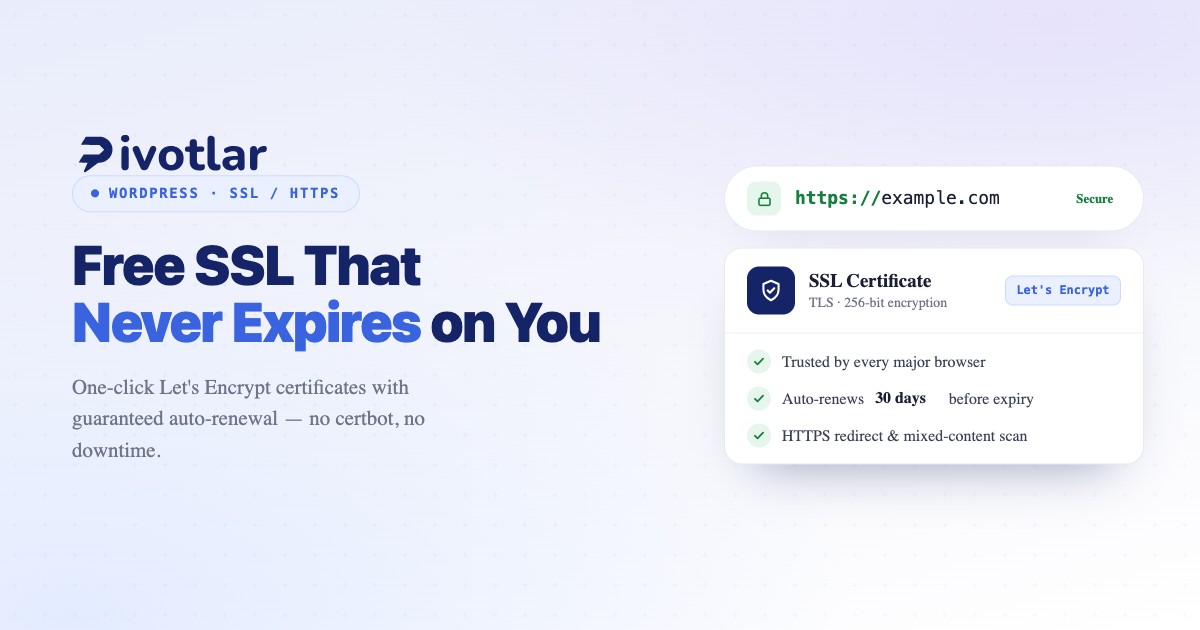
- Auto-renewal: Certificates renew automatically 30 days before expiration, with alerts if renewal fails
- Automatic HTTPS redirect: Server-level redirects configured instantly, no Nginx editing required
- Mixed content detection: Scans your site for HTTP resources and flags issues before browsers complain
- Wildcard support: Provision wildcard certificates with DNS API integration for staging and development environments
By removing manual steps and failure points, Pivotlar ensures your WordPress sites stay secure and trusted without ongoing maintenance overhead.
Frequently Asked Questions
Is Let's Encrypt Really Free?
Yes. Let's Encrypt is a nonprofit funded by sponsors like Mozilla, Google, and the Linux Foundation. There are no hidden fees, premium tiers, or usage limits. Certificates are trusted by all major browsers and provide the same encryption strength as paid certificates.
Why Does My SSL Certificate Keep Expiring?
Let's Encrypt certificates expire every 90 days. If yours keeps expiring, auto-renewal is failing. Common causes include firewall changes blocking ACME challenges, Nginx configuration errors preventing reloads, or cron jobs that stopped running. Check /var/log/letsencrypt/letsencrypt.log and test renewal with sudo certbot renew --dry-run.
How Do I Fix 'Not Secure' Warnings in WordPress?
First, ensure your SSL certificate is valid and not expired (sudo certbot certificates). If the certificate is fine, the issue is likely mixed content. Update your WordPress Site URL to https://, search-and-replace HTTP URLs in your database, and check browser console for blocked resources. Use the Really Simple SSL plugin as a temporary stopgap, but fix the root cause in your database and Nginx configuration.
Conclusion
HTTPS is mandatory for WordPress sites in 2025, and Let's Encrypt makes free SSL certificates accessible to everyone. While manual installation with Certbot is straightforward, real-world pitfalls—mixed content, redirect loops, and silent renewal failures—require careful configuration and ongoing monitoring. For teams managing multiple WordPress sites, automation platforms like Pivotlar eliminate these failure points with one-click issuance, guaranteed auto-renewal, and built-in mixed content detection. Whether you manage certificates manually or automate the process, securing your WordPress site with HTTPS is no longer optional—it's the baseline for trust, security, and search visibility.