
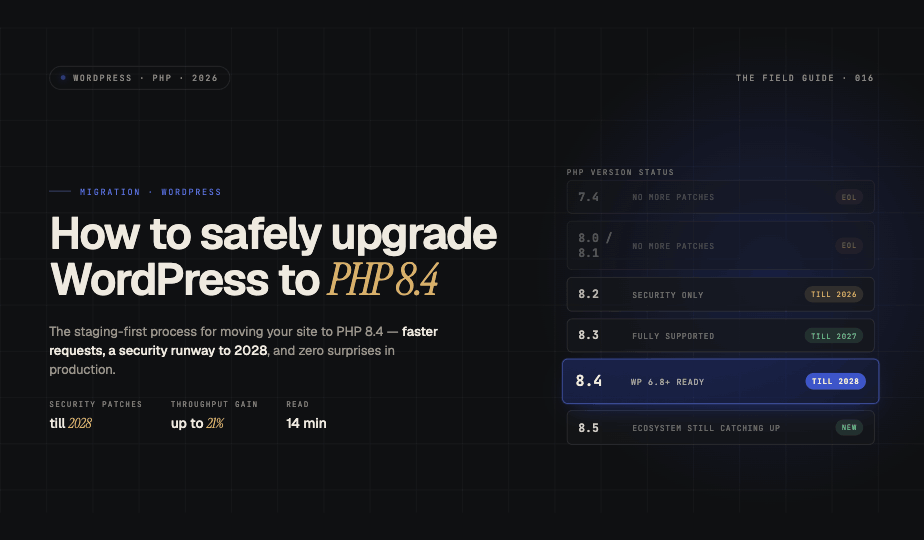

PHP 8.4 brings meaningful performance improvements and a long security runway to WordPress sites, but upgrading without proper preparation can break your entire site. This guide walks you through migrating your WordPress installation to PHP 8.4 safely, step by step, with real testing and rollback plans built in.
Why Upgrade to PHP 8.4 in 2026
PHP 8.4 has hit its sweet spot. Released in November 2024, it has been in production long enough for WordPress core, major plugins, and theme frameworks to catch up fully. As of May 2026, WordPress officially documents PHP 8.4 as fully supported in WordPress 6.8 and later. The old "beta support" label is gone.
The security argument is just as strong. PHP 8.4 receives active support until the end of 2026 and security patches until December 2028, the longest runway of any widely adopted PHP version right now. Compare that with PHP 8.2, which loses security support at the end of 2026, and PHP 8.1 and older, which are already end of life. If your site still runs PHP 7.4 or 8.0, every newly discovered vulnerability in those versions stays unpatched forever.
On performance, set your expectations correctly. If you are jumping from PHP 7.4, you can expect roughly 6 to 7 percent more requests per second on a standard WordPress site, and WooCommerce stores have measured gains of up to 21 percent in throughput. Coming from PHP 8.3, the difference is modest, so the upgrade case from 8.3 is mostly about staying on a supported branch through 2028 rather than raw speed.
You might ask why not jump straight to PHP 8.5, which shipped in November 2025. You can, and many well-maintained sites do. But PHP 8.4 remains the safer default for production in 2026 because the plugin ecosystem has had a full extra year to mature on it. If any plugin you depend on is slow to update, 8.4 gives you modern PHP without living on the newest branch.
What Changed in PHP 8.4 That Can Break Plugins
Two changes cause most WordPress breakage on PHP 8.4:
Implicit nullable parameters are deprecated. Code like function foo(string $name = null) now throws a deprecation notice. This pattern is everywhere in plugins written before 2024. Deprecations will not take your site down, but they flood error logs and signal a plugin that is falling behind.
Functions deprecated in earlier 8.x versions have been removed. Plugins that ignored deprecation warnings on PHP 8.2 and 8.3 can now hit fatal errors. The usual suspects are abandoned WooCommerce extensions, old page builders, and themes last updated before 2021.
PHP 8.4 also introduces genuinely useful features for developers, including property hooks, asymmetric visibility, new array functions like array_find(), and a modern DOM API. You will not interact with these as a site owner, but they are one reason actively maintained plugins keep getting faster and cleaner.
Step 1: Inventory Your Current Environment
Before changing anything, document your current setup. Log into your WordPress admin panel and go to Tools > Site Health. Note your current PHP version, active theme, and installed plugins.
Your inventory should include:
- Current PHP version and server configuration
- WordPress core version
- Active theme and version number
- All active plugins with version numbers
- Any custom code or child themes
This baseline saves you hours if you need to troubleshoot later.
Step 2: Check Compatibility Before Touching Anything
Install the PHP Compatibility Checker plugin from the WordPress repository, or run PHPCompatibility scans via PHP_CodeSniffer if you are comfortable on the command line. These tools flag known PHP compatibility issues in your theme and plugins without requiring an actual upgrade.
Review results carefully. Errors will break your site, warnings point at deprecated code. Focus first on anything flagged as an error for PHP 8.4. Static scanners are not perfect, so treat a clean scan as a good sign rather than a guarantee. Real testing on staging in Step 7 is what actually proves compatibility.
Pay extra attention to any plugin that has not been updated in over two years. On PHP 8.4, abandoned plugins are the single most common cause of fatal errors. Start looking for actively maintained alternatives now.
Step 3: Update WordPress Core, Themes, and Plugins
Make sure WordPress core is on a current version. WordPress 6.8 and later fully support PHP 8.4, and if you are on WordPress 6.9 or 7.0 you also get full PHP 8.5 support, which future-proofs your next upgrade. Go to Dashboard > Updates and apply everything available.
Update your theme to its latest version. If you run a custom or child theme, review the code for the deprecation patterns above, especially implicit nullable parameters in function signatures. Major frameworks like Astra, GeneratePress, and Divi shipped PHP 8.4 compatible releases through 2025.
Update all plugins, prioritising anything the compatibility checker flagged.
Step 4: Create a Complete Site Backup
Before testing anything, take a full backup covering files, database, and configuration. Use UpdraftPlus, your host's backup tools, or your control panel's snapshot feature as we do here in Pivotlar.
Verify the backup is complete and actually restorable, then store a copy off the server. This is your rollback point if anything goes wrong.
Step 5: Set Up a Staging Environment
Never test PHP upgrades on production. Create a staging environment that mirrors production exactly. Most managed WordPress hosts and modern control panels offer one-click staging. On a VPS, clone the site to a subdomain.
Your staging environment should match production on:
- WordPress core version
- Themes and plugins at identical versions
- A recent copy of the production database
- The same server stack (Nginx or Apache, MySQL or MariaDB version)
Password-protect the staging site and block search engines so you do not create duplicate content issues.
Step 6: Switch Staging to PHP 8.4
Change the PHP version for your staging site through your hosting control panel or server configuration:
- Pivotlar: MultiPHP Manager allows per-domain PHP selection
- cPanel: MultiPHP Manager allows per-domain PHP selection
- Plesk: PHP Settings under the domain's hosting settings
- VPS or dedicated: install the php8.4-fpm packages and update your pool and server block configuration
Verify the switch took effect. The quickest safe method is running php -v for CLI and checking Site Health > Info > Server inside WordPress for the web-facing version. These two can differ on VPS setups, so confirm both. If you use a phpinfo file to check, delete it immediately afterwards.
One practical tip for VPS users: PHP-FPM pools carry settings like memory_limit and upload_max_filesize that will not automatically transfer to the new 8.4 pool, unless using panel that allow that as we do here in Pivotlar. Copy your custom ini values across before testing, or you will chase phantom problems that have nothing to do with PHP 8.4 itself.
Step 7: Test Thoroughly on Staging
Work through the site systematically. Budget a few hours for a typical site, more for WooCommerce.
Cover at minimum:
- Homepage and major landing pages
- Blog archives and individual posts
- Contact forms and submission handling
- E-commerce flows: cart, checkout, payment gateways, order emails
- User registration and login
- The full admin panel, not just the dashboard
- Settings pages of your most critical plugins
Watch the PHP error log the entire time. Enable WordPress debugging with WP_DEBUG and WP_DEBUG_LOG in wp-config.php and review /wp-content/debug.log. On PHP 8.4, expect some deprecation notices even from well-maintained plugins. Notices are tolerable short term. Warnings and fatal errors are not, and each one needs a fix or a plugin replacement before you go further.
Step 8: Run Performance Benchmarks
Measure before and after on identical hardware so your comparison means something. The Query Monitor plugin gives you:
- Page generation time
- Database query count and execution time
- Peak memory usage per page load
External tools like GTmetrix and WebPageTest validate the front-end picture, including time to first byte.
Be honest about what to expect. Independent 2026 benchmarks show PHP 8.4 roughly on par with 8.3 for standard WordPress pages, with the clear wins appearing on sites coming from PHP 7.4 or 8.0 and on heavier workloads like WooCommerce. If your numbers barely move coming from 8.3, that is normal. You upgraded for the 2028 security runway, and the benchmark simply confirms nothing regressed.
Step 9: Deploy to Production
Once staging is clean, schedule the production switch during low-traffic hours. Announce a maintenance window if you run a busy site.
Deployment checklist:
- Take a fresh production backup
- Enable maintenance mode
- Switch PHP to 8.4 via your control panel or server config
- Clear every cache layer: opcache, object cache, page cache, CDN
- Test critical paths immediately, especially checkout and forms
- Watch error logs for 15 to 30 minutes
- Disable maintenance mode
The safety net here is that rolling back a PHP version takes under a minute on most hosts. If something serious surfaces, switch back, fix the offending plugin on staging, and try again. Keep the staging environment alive for at least 48 hours after deployment.
Step 10: Monitor Post-Upgrade Performance
Track the site for at least a week. Compare real user data against your staging benchmarks and watch:
- Error rates in server logs
- Page load times in analytics
- Server resource usage, CPU and memory
- Support channels for user-reported issues
Most sites settle immediately. If errors climb or performance dips, the usual culprits are opcache misconfiguration after the version switch or a caching plugin that needs its settings refreshed for the new PHP version.
Troubleshooting Common Issues
White screen of death. Add define('WP_DEBUG', true); and define('WP_DEBUG_LOG', true); to wp-config.php and read the log. Nine times out of ten it is a single incompatible plugin throwing a fatal error.
Deprecation notices flooding the log. Almost always the implicit nullable parameter change. Report it to the plugin author or update to a version released in 2025 or later. These are warnings, not emergencies, but they mark plugins to watch.
Plugin conflicts. Deactivate all plugins, switch to a default theme, then reactivate one by one until the problem returns. Replace the culprit.
Performance regression. Clear and reconfigure opcache, confirm your caching plugin supports PHP 8.4, and check that your PHP-FPM pool settings carried over from the old version.
Maintaining PHP 8.4 Going Forward
PHP 8.4 receives active support until December 2026 and security patches until December 2028, so you are covered for a while. PHP 8.5 is already stable and WordPress 6.9 and 7.0 fully support it, so pencil in an evaluation for late 2026 or 2027 once your plugin stack has proven itself there. Keep WordPress core and plugins current in the meantime, since ecosystem compatibility is what makes the next PHP jump painless.
Upgrading to PHP 8.4 is less about chasing benchmark numbers and more about keeping your site on a secure, actively maintained foundation with the longest support window available. Follow the staging-first process above and the risk stays close to zero while the long-term payoff is real.