

Why Plugin-Based WordPress Backups Fail at Scale
Most WordPress site owners rely on plugins like UpdraftPlus, BackWPup, or Duplicator for backups. These solutions work for small sites, but they share a critical architectural flaw: they run inside PHP. When your database exceeds a few hundred megabytes or your media library grows into the gigabytes, you'll encounter memory limits, execution timeouts, and incomplete backups. Worse, the default behavior stores backups on the same server as your live site—meaning a catastrophic server failure takes both your site and your backups offline simultaneously.
Professional WordPress backup strategies operate at the server level, outside the constraints of PHP execution. They combine database dumps with file-system snapshots, push everything offsite to S3-compatible storage, maintain retention policies, and—most importantly—include regular restore testing. If you've never restored a backup, you don't have a backup; you have a hopeful archive.
The 3-2-1 Backup Rule Applied to WordPress
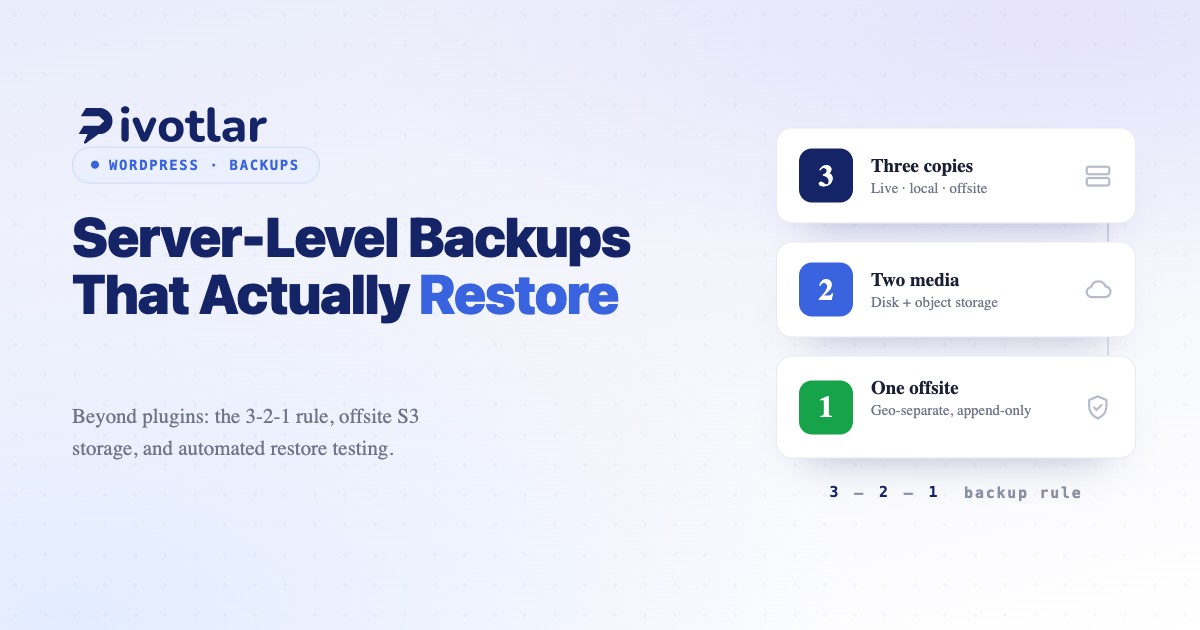
The industry-standard 3-2-1 rule provides a framework for resilient backup strategies: maintain three copies of your data, on two different storage media, with one copy offsite. For WordPress, this translates to your live site (copy one), a local backup on the server (copy two, different storage medium), and an offsite backup in cloud object storage (copy three, geographically separate).
This approach protects against multiple failure scenarios. Hardware failure on your server? The offsite copy survives. Ransomware encrypting your server? The offsite backup remains untouched because it's write-once, append-only storage. Accidental deletion or bad plugin update? You can roll back to yesterday's snapshot. The 3-2-1 rule isn't paranoia—it's the minimum viable disaster recovery posture for any production WordPress site.
Anatomy of a Complete WordPress Backup
A complete WordPress backup requires three components, each capturing a different aspect of your site's state. First, the database contains all your posts, pages, comments, user data, and configuration. A mysqldump export captures this in SQL format. Second, the wp-content directory holds your themes, plugins, and uploads—the media library that often represents the bulk of your backup size. Third, your wp-config.php file contains database credentials, security keys, and environment-specific settings required to reconstruct your site.
Many backup solutions skip the WordPress core files because you can always download a fresh copy from WordPress.org. This reduces backup size and transfer time. However, if you've made any core modifications (not recommended, but common in legacy sites), you'll need to include the entire WordPress root directory. The key is consistency: every backup must capture the database and wp-content at the same moment in time to prevent mismatches between content and media references.
Why Offsite S3-Compatible Storage Matters
S3-compatible object storage has become the de facto standard for offsite backups because it's cheap, durable, and vendor-agnostic. Amazon S3 pioneered the API, but Cloudflare R2, Backblaze B2, and Wasabi offer compatible interfaces at significantly lower costs. The S3 API means you can switch providers without rewriting your backup scripts—just change the endpoint URL and credentials.
Durability is the critical metric. These services architect their storage for 99.999999999% (eleven nines) durability, meaning if you store ten million files, you'll statistically lose one every ten thousand years. They achieve this through erasure coding, geographic replication, and automatic integrity checks. Compare this to a single hard drive in your server, which has a 1-4% annual failure rate. The math is compelling: offsite object storage is orders of magnitude more reliable than local disk.
Cost Comparison: S3-Compatible Storage Providers (2026)
Pricing varies significantly across providers. Here's a snapshot based on 100 GB of backup storage with minimal retrieval:
- Amazon S3 Standard: $2.30/month storage, $0.09/GB egress (first 100 GB)
- Cloudflare R2: $1.50/month storage, zero egress fees
- Backblaze B2: $0.60/month storage, $0.01/GB egress (first 1 GB free daily)
- Wasabi: $0.69/month storage (1 TB minimum), free egress up to storage amount
For WordPress backups with infrequent restores, Cloudflare R2 and Backblaze B2 offer the best value. R2's zero egress fees eliminate surprise bills when you need to restore a large media library. Backblaze B2's rock-bottom storage costs make it ideal for long-term retention of monthly archives. The choice depends on your restore frequency and total storage needs, but all four options cost a fraction of what you'd pay for equivalent local storage with manual management.
Server-Level Backup Script with S3 Upload
A proper automated backup runs outside WordPress, typically as a cron job executing a shell script. Here's a minimal example that creates a timestamped backup and uploads to S3-compatible storage:
#!/bin/bash
BACKUP_DIR="/var/backups/wordpress"
TIMESTAMP=$(date +%Y%m%d_%H%M%S)
DB_NAME="wordpress_db"
DB_USER="wordpress_user"
DB_PASS="your_password"
WP_PATH="/var/www/html"

# Create backup directory
mkdir -p $BACKUP_DIR

# Dump database
mysqldump -u$DB_USER -p$DB_PASS $DB_NAME | gzip > $BACKUP_DIR/db_$TIMESTAMP.sql.gz

# Archive wp-content and config
tar -czf $BACKUP_DIR/files_$TIMESTAMP.tar.gz -C $WP_PATH wp-content wp-config.php

# Upload to S3 (using AWS CLI with custom endpoint for R2/B2)
aws s3 cp $BACKUP_DIR/db_$TIMESTAMP.sql.gz s3://your-bucket/backups/ --endpoint-url=https://your-endpoint
aws s3 cp $BACKUP_DIR/files_$TIMESTAMP.tar.gz s3://your-bucket/backups/ --endpoint-url=https://your-endpoint

# Remove local backups older than 7 days
find $BACKUP_DIR -name "*.gz" -mtime +7 -delete
Schedule this script in crontab to run daily at 2 AM: 0 2 * * * /usr/local/bin/wordpress-backup.sh. This approach bypasses PHP entirely, uses native database tools for consistency, and implements local retention to prevent disk bloat. The AWS CLI tool works with any S3-compatible provider—just set the appropriate endpoint URL and credentials.
Adding Retention Policies and Integrity Checks
A production backup system needs retention policies beyond simple age-based deletion. Common patterns include daily backups for seven days, weekly backups for four weeks, monthly backups for twelve months. Implement this with lifecycle policies in your S3-compatible storage or with versioned backup scripts that categorize by frequency.
Integrity checking is equally critical. After upload, download the backup file and verify its checksum matches the original. For database dumps, perform a test restore to a staging database. For file archives, extract to a temporary directory and spot-check file counts and sizes. These validations catch corruption before you need the backup in an emergency. A corrupted backup discovered during a crisis is worse than no backup at all—it creates false confidence.
Automated Backups and Restore Testing in Pivotlar
Building and maintaining this infrastructure requires server expertise, monitoring, and ongoing vigilance. Pivotlar automates the entire workflow: scheduled backups run at the server level (avoiding PHP limitations), push to your choice of S3-compatible storage with configurable retention, and include automated restore testing to a staging environment. You define the schedule and retention policy; Pivotlar handles execution, monitoring, and verification.
The restore-testing feature is particularly valuable. Every week, Pivotlar automatically restores your latest backup to an isolated staging environment, performs basic health checks (database connectivity, file integrity, WordPress installation validation), and reports results. This continuous validation ensures your backups are genuinely restorable, not just successfully uploaded archives. When disaster strikes, you have confidence your recovery process works because it's been tested repeatedly under normal conditions.
How Often Should You Back Up WordPress?
Backup frequency depends on your content velocity and acceptable data loss window. A news site publishing hourly needs backups every few hours. A brochure site updated monthly can back up weekly. The industry standard for most WordPress sites is daily backups with hourly database dumps for high-traffic sites.
Calculate your Recovery Point Objective (RPO): the maximum age of data you can afford to lose. If losing a day's worth of comments and orders is acceptable, daily backups suffice. If you can't lose more than an hour of transaction data, you need hourly snapshots. Balance this against storage costs and backup window duration. More frequent backups consume more storage and bandwidth, but incremental backup strategies minimize the overhead after the initial full backup.
Where Are WordPress Backups Stored and Why Location Matters
The location of your backups determines your resilience to different failure modes. Backups stored in /var/backups on the same server provide protection against accidental deletion but offer zero protection against server failure, ransomware, or data center outages. Backups on a separate volume in the same data center protect against disk failure but not facility-wide incidents.
True resilience requires geographic separation. Offsite backups in a different region or provider survive when your primary hosting fails. S3-compatible storage automatically replicates across multiple availability zones, providing built-in geographic distribution. For regulated industries or critical applications, consider multi-region replication: store backups in both US and EU regions to survive entire continental infrastructure failures. The cost of geographic redundancy is negligible compared to the business impact of unrecoverable data loss.
Can You Back Up WordPress Without a Plugin?
Not only can you back up WordPress without a plugin—you should. Server-level backups using mysqldump, tar, and object storage clients eliminate the architectural constraints that plague plugin-based solutions. You're no longer limited by PHP memory limits, execution timeouts, or WordPress's administrative interface. You can backup multi-gigabyte databases and terabyte media libraries with the same script that handles small sites.
This approach also improves security. Backup plugins create administrative endpoints that become attack vectors. They store credentials in the WordPress database, exposing them to SQL injection risks. They often implement their own S3 upload logic, introducing bugs and compatibility issues. Server-level backups use proven system tools, store credentials in environment variables or secure vaults, and run with minimal privileges. The reduction in attack surface and increase in reliability make plugin-free backups the professional standard for WordPress hosting.
Why a Backup You've Never Restored Is Just a Guess
The ultimate test of a backup system is successful restoration under pressure. Yet most site owners have never performed a full restore from their backups. They're operating on faith that the backup files are complete, uncorrupted, and contain everything needed to rebuild their site. This faith is often misplaced.
Regular restore testing catches problems before emergencies. Common issues include incomplete database dumps (missing stored procedures or triggers), file permission mismatches that prevent WordPress from writing uploads, missing environment-specific configuration that breaks on restoration, and incremental backups that depend on base files you've unknowingly deleted. Schedule quarterly restore drills: spin up a fresh server, restore your latest backup, and verify the site functions completely. This practice validates your backups, trains your team on restore procedures, and identifies gaps in your documentation. When a real disaster occurs, you'll execute a tested procedure rather than improvising under stress.